Welcome to the September Edition of Tech Aid Insights
“This might be a silly question, but does this message look right?” It’s something I hear often, and it’s never a silly question. Taking a moment to check can make all the difference.
This month, I’m sharing Own Your Online’s free Scam Check, a New Zealand tool that helps you think through a suspicious text, email, call or website. We’re also looking ahead to Cyber Smart Week with three small actions you can take to protect your accounts and devices.
Plus, there’s a screenshot tip for computers and phones, along with October dates for Tech Aid’s free Drop-In Sessions and the Health & Wellbeing Expo in Te Anau.
In this month’s edition
Find out when and how to use the free Scam Check.
See what to do when a message feels genuine but something doesn’t seem right.
Try three small actions for Cyber Smart Week, 5–11 October.
Learn how to take a screenshot on Windows, Mac, iPhone or Android.
Find the October Drop-In Session dates and details of the Health & Wellbeing Expo.
Prefer to read the newsletter? Download the printable September edition (PDF).
-
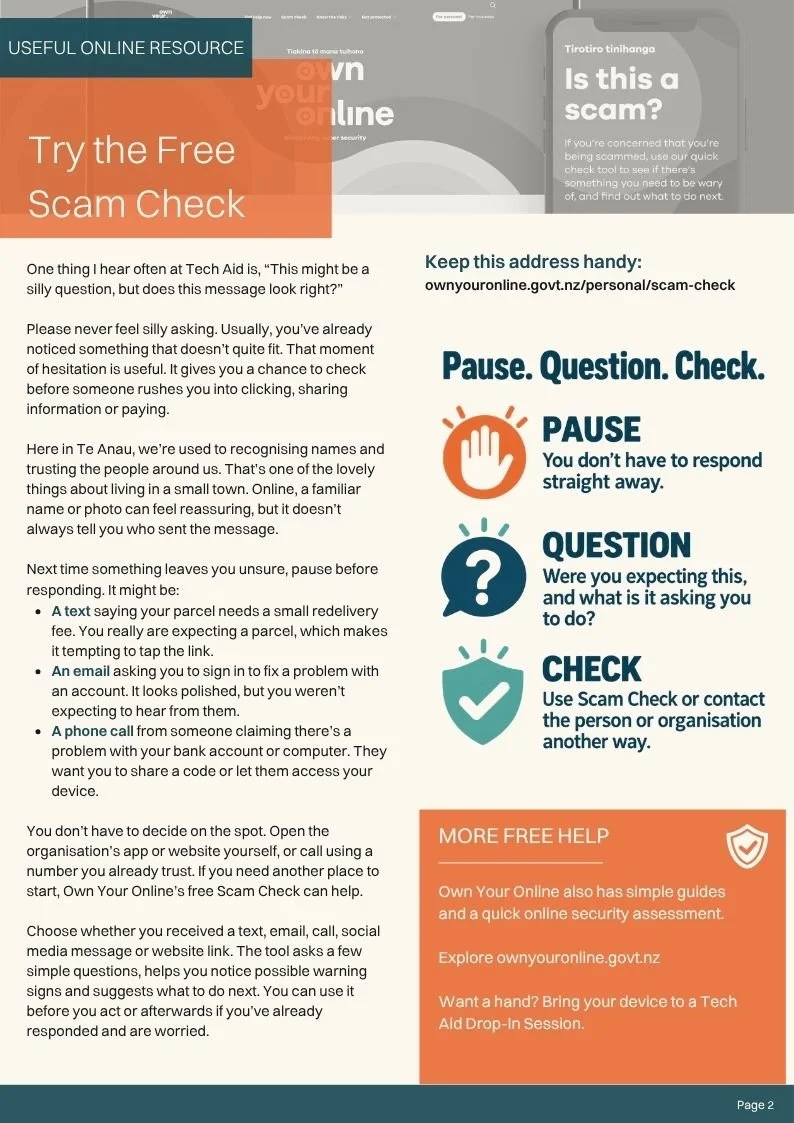
One thing I hear often at Tech Aid is, “This might be a silly question, but does this message look right?”
It’s never a silly question. If something feels unusual, pausing to check is a good instinct. Here in Te Anau, we’re used to recognising names and trusting the people around us. Online, though, a familiar name or photo doesn’t always tell you who sent a message.
You might receive a text about a parcel fee when you really are expecting a delivery. An email might ask you to sign in to fix an account problem, or a caller might claim they need a security code. You don’t have to decide what to do while they’re waiting for an answer.
Start by asking: Was I expecting this, and what is it asking me to do? If you need to follow up, open the organisation’s app or website yourself, or call a number you already trust.
For more guidance, try Own Your Online’s free Scam Check. Choose whether you received a text, email, phone call, social media message or website link, then answer a few simple questions. The tool helps you notice possible warning signs and suggests what to do next. You can use it before you act, or if you’ve already responded and are worried.
Pause. Question. Check. You never have to feel silly for taking time to make sure.
-
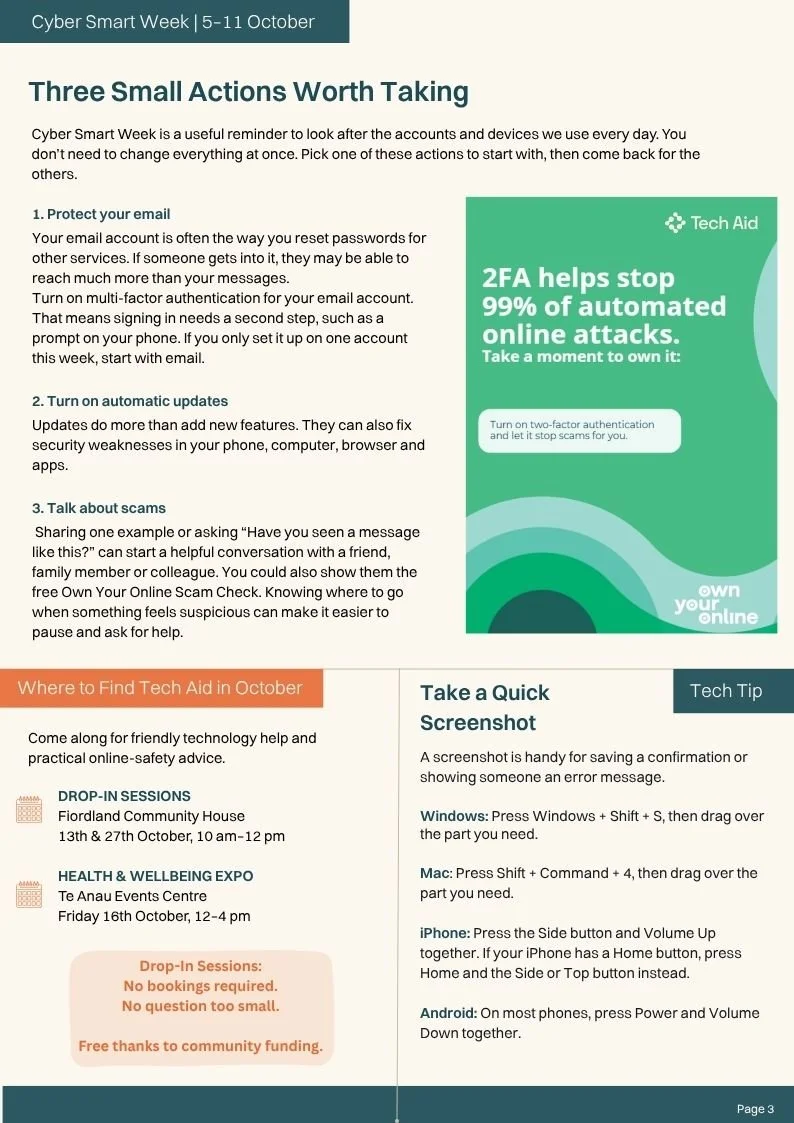
Cyber Smart Week runs from 5–11 October 2026. It’s a good reminder to look after the accounts and devices we use every day. You don’t need to change everything at once—pick one action to start with.
1. Protect your email. Your email account is often how you reset passwords for other services. Turn on two-factor authentication so signing in needs a second step, such as a prompt on your phone.
2. Turn on automatic updates. Updates can fix security weaknesses in your phone, computer, browser and apps. Check that the devices you use regularly are set to update automatically.
3. Talk about scams. Ask a friend, family member or colleague, “Have you seen a message like this?” Sharing one example—or showing them the free Scam Check—can help them know where to turn when something feels off.
For more practical guides, visit Own Your Online.
-
A screenshot is handy when you want to show someone a suspicious message, save a confirmation or ask for help with an error.
Windows: Press Windows + Shift + S, then drag over the part of the screen you need.
Mac: Press Shift + Command + 4, then drag over the part you need.
iPhone: Press the Side button + Volume Up together. On an iPhone with a Home button, press Home + the Side or Top button.
Android: On most phones, press Power + Volume Down together.
A phone screenshot captures the whole screen, but you can crop it before sharing. Check that it doesn’t show passwords, security codes or other private details.
-
Need a hand with a phone, computer, online account or something that doesn’t seem quite right? Come along to a free Tech Aid Drop-In Session at Fiordland Community House on 13 or 27 October, between 10 am and 12 pm.
There’s no booking required and no question too small. Bring your device and we’ll work through it together. The sessions are free thanks to community funding.
You can also find Tech Aid at the Health & Wellbeing Expo at the Te Anau Events Centre on Friday 16 October, 12–4 pm. Come and say hello, learn about practical online safety and find out what local tech support is available.
This Month’s Printable Edition
Prefer the printable version?
You can download or browse the full September edition below.